It’s great that we can update tasks in our app using a working dialogue, but it doesn’t look much like the design we’re going for:
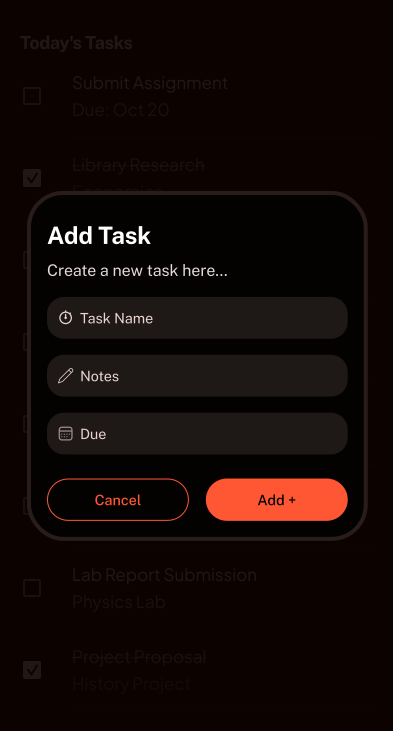
We will need to implement the styles needed.
Tips:
- Look closely at the code inside
components/TaskDialogue.tsx to see how the dialogue is structured.
- Remember that you style React Native components using the
className prop and standard Tailwind CSS classes.
- Custom brand colours are defined in
global.css. You can use these classes in your className props. For example, className="bg-brand-primary" will give you the primary brand colour.
- You can add custom Tailwind class names inside this same file.
- For example, to get the matching background colour used for the dialogue in Figma, you can add
--color-dialog-background: hsl(11 72% 1%); to the @theme section
- You can then use it as
className="bg-dialog-background" in your components.
Open your design document in Figma, and style the dialogue to match the client’s original design:
<DialogContent className="border-foreground-transparent bg-dialog-background min-w-5/6 rounded-4xl border-3">
<DialogHeader className="mb-4">
<DialogTitle className="text-foreground text-2xl">Edit Task</DialogTitle>
<DialogDescription className="text-foreground-transparent">
Make changes to your task details here.
<View className="mb-4 gap-4">
onChangeText={handleUpdateTitle}
className="bg-input-background rounded-full border-0"
onChangeText={handleUpdateCategory}
className="bg-input-background rounded-full border-0"
<DialogFooter className="mt-4 flex flex-row gap-4">
<View className="flex-1">
className="border-brand-primary w-full rounded-3xl border bg-transparent"
onPress={() => setShowDialog(false)}>
<Text className="text-brand-primary">Cancel</Text>
<View className="flex-1">
<Button className="bg-brand-primary w-full rounded-3xl" onPress={handleSave}>
<Text>Save changes</Text>